


14th January 2026
How to Improve WordPress Site Speed
A slow WordPress website costs you money. It frustrates users, damages conversion rates and weakens search visibility. When pages take too long to load, visitors leave and search engines take notice.
If your site looks good but loads slowly, users and potential customers will not wait. On mobile in particular, patience is limited. A fast-loading WordPress website is now a baseline expectation.
This guide explains how to approach WordPress page speed optimisation in practical terms. We cover why speed matters, how to measure it properly and which fixes actually move the needle.
Why WordPress Site Speed Matters
Site speed affects three things that matter commercially: user behaviour, search visibility and conversion performance.
From a user perspective, faster pages reduce friction. Research shows that 47% of users expect a page to load in two seconds or less, and 40% will abandon a site if it takes longer than three seconds. When pages load slowly, users leave before they engage with the content.
Search engines reflect this behaviour. Google uses site speed as a ranking factor on both desktop and mobile, and Bing does the same. Slow sites struggle to compete because they deliver a weaker user experience, regardless of content quality.
Google also evaluates speed through Core Web Vitals (CWV) . These metrics measure real user experience, not just raw load time:
Largest Contentful Paint (LCP): How quickly the main content loads
Interaction to Next Paint (INP): How responsive the site feels
Cumulative Layout Shift (CLS): How stable the layout is while loading
Improving WordPress site speed directly improves these metrics, which supports both search visibility and usability.
How to Check Your WordPress Site Speed
Before making changes, you need a clear baseline. Page speed optimisation work without measurement leads to wasted effort and the wrong fixes being implemented.
Start with tools that reflect real user experience and search engine evaluation:
Google PageSpeed Insights: Google’s own assessment, including Core Web Vitals (CWV) data for mobile and desktop
GTmetrix: Useful for identifying large files, excessive requests and inefficient assets
Pingdom: Helpful for understanding page size and request volume at a glance
YSlow: A secondary reference for performance best practices
Google PageSpeed Insights should be your primary tool. It shows how Google evaluates page experience in the real world, not just in a lab.
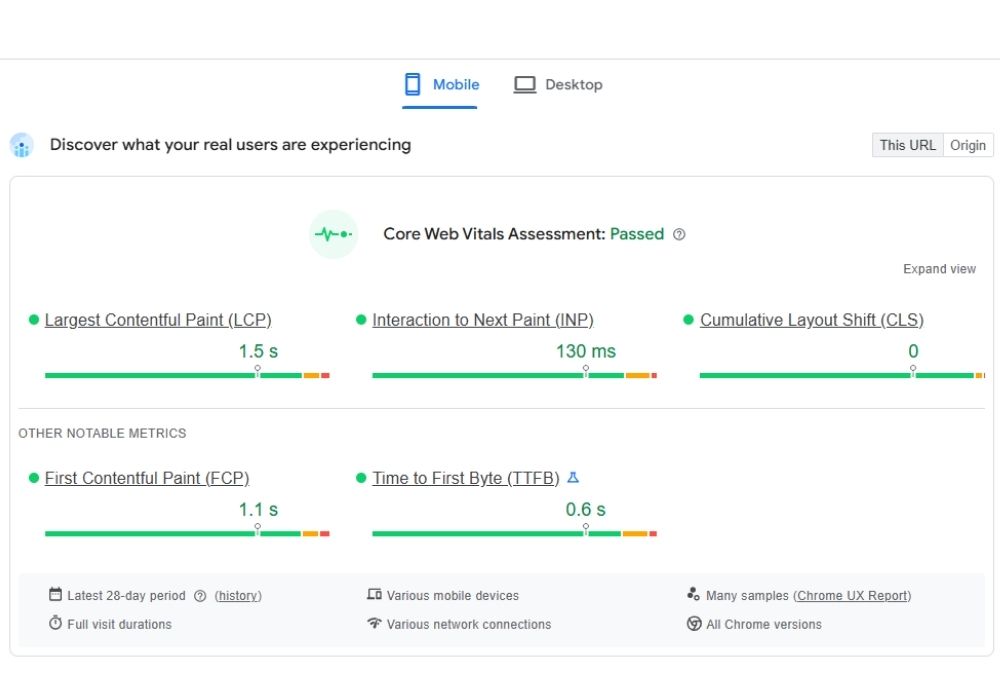
When reviewing results, focus on:
- Mobile performance first
- Core Web Vitals failures, not overall scores
- Large images, fonts and scripts that delay main content
Scores alone do not improve performance. The value comes from identifying the specific issues that affect load time and user experience, then fixing those in order of impact.
What slows down a WordPress website?
Most slow WordPress websites are not slow because of WordPress itself. They are slow because of the decisions layered on top of it over time. In most cases, performance problems come from a small number of repeat issues:
Slow or underpowered hosting: If the server has slow response times, limited resources or poor caching support, even a well-built site will struggle.
Unoptimised images and media bloat: Large images are one of the most common causes of slow load times, as they increase page weight, delay the Largest Contentful Paint (LCP) and hurt mobile performance in particular.
Too many plugins (or poorly built ones): Plugins add scripts, database queries and external requests. Poorly coded plugins often load assets on every page, even when the feature is not being used.
Excessive external scripts: Tracking tools, ads, embedded widgets and third-party fonts can slow down pages significantly because they rely on external servers.
Too many HTTP requests: A page with dozens of scripts, stylesheets and fonts forces the browser to load more files before the site becomes usable.
Database bloat and inefficient queries: Large sites often accumulate post revisions, transient data and unnecessary records over time. On ecommerce websites, heavy database queries can slow down page generation, particularly on category and search pages.
Poor caching setup: Without caching, WordPress rebuilds pages dynamically on every visit. That increases server load and slows response times, especially under traffic spikes.
If your site feels slow, it is usually because one or more of these issues are compounding. The fastest path to improvement is identifying which one is limiting performance most, then fixing that first.
Is your WordPress site underperforming?
We identify what’s actually slowing your site down and implement fixes that improve speed, usability and conversion rates.
How to improve loading speed of WordPress websites
The fixes below are ordered by impact. Not every change will matter for every WordPress website, but together they cover the areas that most often limit performance in real projects.
You do not need to apply all of them at once. Start with the bottlenecks that affect server response, page rendering and above-the-fold content. Once those are under control, the smaller optimisations become worth doing.
What follows is a practical framework for improving WordPress site speed, focused on changes that reduce load time, improve consistency and support better user experience and conversion performance.
Many of the fixes below can be implemented without installing additional plugins. Where a plugin is optional, we have noted the non-plugin alternative.
1. Improve your hosting plan
Hosting sets the performance ceiling for your WordPress site. If the server is slow, no amount of front-end optimisation will fully fix it.
Many websites start on cheap shared hosting. That can work early on, but performance often drops as traffic, content and plugins increase. As your site grows, more capable hosting becomes necessary. Common options include:
Managed WordPress hosting: Built specifically for WordPress, with server-level caching, security and updates handled for you.
VPS hosting: A dedicated slice of server resources, offering better performance and scalability at a reasonable cost.
Dedicated hosting: Full control and resources, usually only justified for very large or high traffic sites.
VPS and managed WordPress hosting typically offer the best balance of performance, flexibility and cost for most businesses.
A capable host should support the following, because they directly affect speed:
PHP 8+: Newer PHP versions process WordPress code significantly faster than older releases, reducing server response time
OPcache: Stores precompiled PHP code in memory, so pages do not need to be reprocessed on every request
HTTP/2 or HTTP/3: Allows multiple files to load in parallel, reducing delays caused by script and asset loading
Brotli or Gzip compression: Compresses files before delivery, reducing the amount of data sent to the browser
Without these in place, even well-optimised sites can feel slow. Plus, this is also one of the few speed improvements that requires no plugins at all, as better server performance improves every page automatically.
2. Reduce HTTP requests
Every time a page loads, the browser requests files from the server. Images, stylesheets, JavaScript files and fonts all count. The more requests required before the page becomes usable, the slower it feels.
Modern protocols like HTTP/2 and HTTP/3 reduce some of the overhead, but request volume still matters. Large or blocking files can delay when the main content appears and when the page becomes interactive.
Focus on reducing requests that block rendering or add little value:
- Remove files that are no longer needed
- Avoid plugins and themes that load assets on every page
- Limit external scripts that rely on third-party servers
- Combine or defer CSS and JavaScript where appropriate
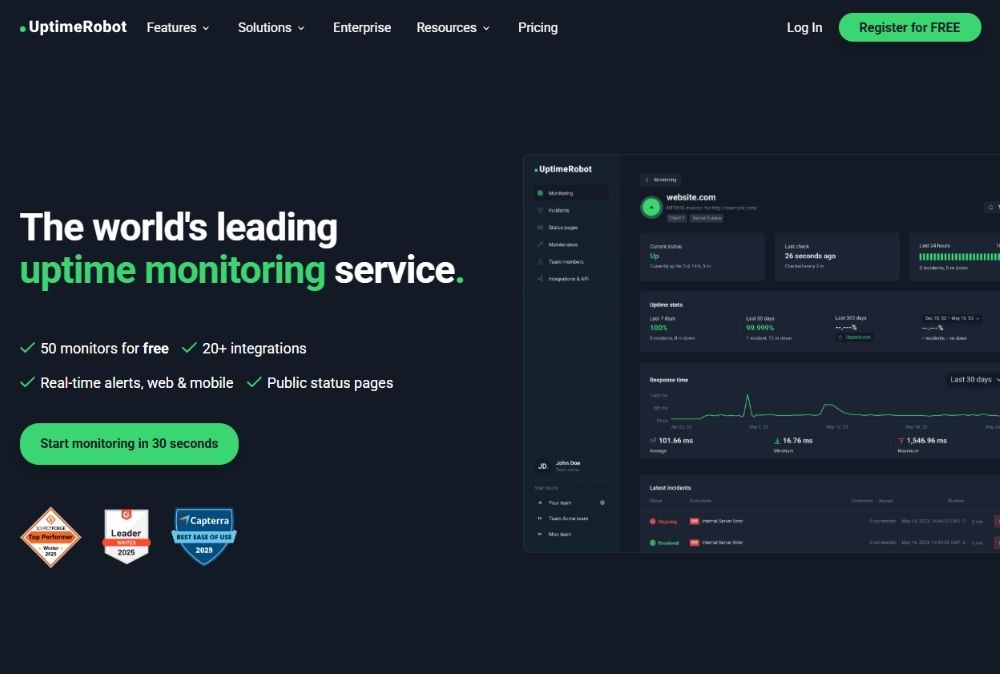
Use tools like GTmetrix or UptimeRobot to see how many requests a page makes and which files are delaying load. Prioritise fixes that affect above-the-fold content and initial interaction, rather than chasing a low request count for its own sake.
This can be improved without plugins, but it usually requires development work. Reducing HTTP requests often means removing unused theme scripts, limiting third-party embeds and preventing assets from loading site-wide when they are only needed on specific templates. Performance plugins can automate some of this, but the cleanest fixes are typically made at theme level.
3. Optimise images
Images are one of the most common causes of slow WordPress websites. Large or poorly prepared images increase page weight, delay main content loading and hurt mobile performance.
As a baseline, images should be sized for how they are displayed, not how they were originally created. For most sites, that means file sizes kept under 600KB, and widths between 1500 and 2500 pixels for large images
Uploading oversized assets and relying on the browser to resize them is inefficient and unnecessary.
Modern image formats should be used wherever possible. In practice:
JPEG files work well for photographs
PNG files are suitable for graphics or transparency
WebP and AVIF offer the same visual quality at much smaller file sizes
WebP and AVIF are now widely supported by WordPress and modern browsers and should be the default where compatibility allows.
Avoid uploading non-web formats such as PDF, PSD, TIFF or DOC files. These formats are not designed for efficient delivery in the browser and add unnecessary weight.
Images should always be compressed before upload. Compression reduces file size without visibly affecting quality, improving load time without harming design.
File naming also matters. Image names help search engines understand what the image represents when other signals are limited. Use clear, descriptive names, keep them under eight words and avoid special characters. Replace generic filenames like IMG_00742.jpg with something meaningful such as red-cotton-jumper-01.jpg; this is also helpful for SEO purposes.
Images display differently across devices. Desktop layouts allow more space, while mobile layouts crop aggressively. Important visual detail should sit centrally to avoid being lost on smaller screens.
WordPress now applies native lazy loading by default. This delays image loading until the image is about to enter the viewport, reducing initial page weight and improving Core Web Vitals, particularly on mobile connections.
4. Be selective with WordPress plugins
Plugins extend WordPress functionality, but every plugin adds code, database queries and maintenance overhead. Too many plugins, or the wrong ones, slow websites down and introduce unnecessary risk.
Each plugin must earn its place. If it does not deliver clear value, it should not be active. Focus on the following:
- Remove plugins you no longer use
- Avoid plugins that duplicate existing functionality
- Replace simple plugin features with manual solutions where practical
- Review active plugins every four to six months
Poorly built plugins often load CSS and JavaScript on every page, even when the feature is not used. This increases page weight and delays rendering, particularly on mobile.
Jetpack is a good example of why selectivity matters. Some features, such as image delivery and lazy loading, can improve performance. Others add scripts and external requests that provide limited value. Enable only the features you actively need and disable the rest.
5. Minify and compress code
Browsers do not care about readable code. They care about how much data they need to download and how quickly they can process it.
Minification removes unnecessary whitespace and comments from HTML, CSS and JavaScript files. Compression then reduces those files further before they are sent to the browser. Together, these steps reduce transfer size and speed up delivery, particularly on slower mobile connections.
This work matters most when files are large or block page rendering. In particular, you should aim to minify HTML, CSS and JavaScript where files are substantial, and enable Brotli compression at the server or CDN level (with Gzip as a fallback).
WordPress performance plugins can handle this safely when configured properly. Tools such as WP Rocket and W3 Total Cache are commonly used because they combine minification, compression and caching (which we talk about next) in one place. However, minification can also be implemented without plugins by enabling compression at server level and using build tooling to minify CSS and JavaScript before deployment.
6. Enable caching
Caching reduces the amount of work your server has to do on each request. Instead of rebuilding pages from the database every time, WordPress can serve pre-generated versions of pages much faster.
Page caching is the baseline. It benefits repeat visitors most and is effective for content-heavy websites with relatively static pages.
Object caching goes a step further. It stores database query results in memory, reducing load on the database. This is particularly useful for larger ecommerce sites, where pages rely on complex queries and dynamic data.
Use page caching by default. Consider object caching when:
- Your website has high traffic
- Page generation time is slow
- WooCommerce or other query-heavy plugins are in use
Caching plugins are commonly used to manage this in WordPress. Tools like WP Super Cache can handle page caching, while Redis or Memcached are typically used for object caching when supported by the host.
7. Optimise fonts and external scripts
Third-party scripts are a common source of performance issues because they sit outside your control. Every external request adds latency and, if that script blocks rendering, it delays when users see or interact with the page.
Common examples include social widgets, analytics tools, commenting systems and advertising networks. Not all of these are problems, but each one must justify its cost.
Fonts deserve special attention. Web fonts often load early in the page lifecycle and can delay the LCP if handled poorly. Too many font families or weights increase file size and block rendering. In order to prevent issues arising from this, you should:
- Limit the number of font families and weights
- Host fonts locally where possible to reduce external requests
- Preload key fonts so critical text renders quickly
Advertising scripts require similar discipline. Ads can drive revenue, but poorly implemented setups slow pages down and hurt user experience, especially on mobile. Where possible, host assets locally, replace heavy scripts with lighter alternatives and remove networks that deliver limited value.
The aim is not to remove all third-party scripts. It is to remove the ones that slow the site down without contributing meaningfully to performance or revenue.
8. Clean up website baggage
Over time, WordPress websites accumulate data that adds weight and complexity. Not all of it affects performance, but some of it does increase database load and slow page generation.
The areas most likely to cause issues are:
- Unused plugins and themes that still load files or queries
- Excessive post revisions that bloat the database
- Large, unmanaged databases on ecommerce websites
- Media files that are loaded but no longer serve a purpose
Spam comments and old trackbacks usually have minimal impact on speed, but they do add noise and unnecessary database entries.
WordPress empties the trash every 30 days by default. Reducing this window can help on larger sites, but it is not a performance fix on its own.
For sites with growing databases, scheduled clean-up tools can help. Plugins such as WP-Optimize allow controlled removal of revisions, transient data and overhead without manual intervention.
9. Use a Content Delivery Network (CDN)
A Content Delivery Network (CDN) improves performance by serving static assets from servers closer to the user. Instead of every request hitting your main server, files are delivered from the nearest available location.
CDNs are most effective for assets that do not change on every request, such as:
- Images
- CSS and JavaScript files
- Videos and downloadable files
This matters most when your customers are located in different countries or when pages rely heavily on media assets. For local, low traffic sites, the gains may be modest. For national or international sites, a CDN often delivers immediate improvements. A CDN is not mandatory for every WordPress site.
Many modern CDNs also provide additional benefits, including Brotli compression, HTTP/3 support and basic security features. Free tiers from providers such as Cloudflare now make CDN usage practical even for smaller sites.
Improving WordPress site speed is not about adding more tools or chasing perfect scores. It is about removing friction and focusing on the changes that actually affect user experience and performance.
Whether you manage your site in-house or work with a WordPress developer , a clean, efficient and mobile-focused setup consistently outperforms bloated builds. Faster sites convert better, scale more reliably and waste less resources.

Rehan Khan
Rehan Khan is a Senior Project Manager with over 20 years’ experience delivering complex digital projects. His work focuses on defining clear project scope, managing risk and keeping multidisciplinary teams aligned. Rehan works closely with designers and developers to translate strategy into practical delivery, ensuring projects stay focused, efficient and well controlled from planning through to launch.
Is your WordPress website slower than it should be?
Make your site faster and easier to use.
A slow WordPress website can frustrate visitors, weaken search performance and stop people from taking the next step. Our team improves WordPress site speed, focusing on the issues that actually slow your site down, from heavy images and plugins to caching, scripts, hosting and code.
Speed Up Your WordPress Website